
Include / Exclude a Member in a Segment
Segments in the Loyalty platform are used to create groups of Members that share certain characteristics represented as one or more logical conditions. These groups can then be used for different purposes, such as the target recipients of a marketing campaign. For more information, see Getting Started with Segments.
From the Segments tab of the Member Details screen, you can explicitly force a Member to be included in a Segment (or excluded from a Segment). This feature overrides the Segment logic, meaning that a Member will be included in the Segment, even if they don't otherwise meet the logical conditions for conclusion. Conversely, if you explicitly exclude a Member from a Segment, they will not be included the Segment, even if the logical conditions would otherwise have selected them.
Include a Member in a Segment
To manually include a Member in a Segment:
-
Select Members from the top navigation bar, then select Members > Members from the side navigation menu. The Members screen is displayed.
-
On the Members screen, search for and select the desired Member (see Search for a Member for more information). The Member Details screen is displayed with the Metrics tab selected by default.
-
Select the Segments tab.
-
In the Included Segments section, select the desired Segment from the drop-down menu.
-
Click Add Segment. The selected Segment is added to the list within the Included Segments section.

-
Repeat the above steps as needed to include this Member in more Segments.
-
Optionally, to remove a Segment from the list of Included Segments, click the Delete icon next to the desired Segment.
Exclude a Member from a Segment
To manually exclude a Member from a Segment:
-
Select Members from the top navigation bar, then select Members > Members from the side navigation menu. The Members screen is displayed.
-
On the Members screen, search for and select the desired Member (see Search for a Member for more information). The Member Details screen is displayed with the Metrics tab selected by default.
-
Select the Segments tab.
-
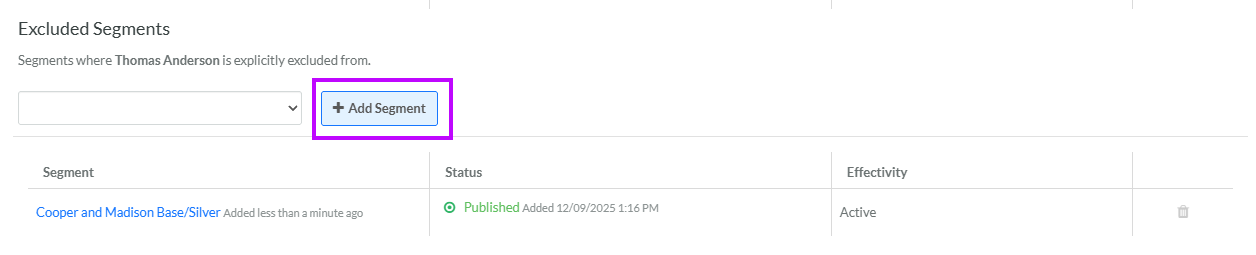
In the Excluded Segments section, select the desired Segment from the drop-down menu.
-
Click Add Segment. The selected Segment is added to the list within the Excluded Segments section.
-
Repeat the above steps as needed to exclude this Member from more Segments.
-
Optionally, to remove a Segment from the list of Excluded Segments, click the Delete icon next to the desired Segment.
